How To Turn Lecture Notes Into A Practice Test: Full Guide


Most of us were taught that studying means going over our notes again and again until it feels like we have memorized them.
But that’s just our brains confusing familiarity with retention.
You can know your lecture notes inside out and still end up scratching your head when a question is posed to you in a slightly different way.
If you want to retain the material of your lecture notes, the fix is to turn them into tests. But manually making these tests and then scoring them is a hassle.
That’s why AI study tools like RemNote exist.
RemNote can turn your lectures and other study materials into a full practice test in a few minutes. You then attempt those tests inside RemNote and get a score and other insights based on your performance.
In this article, I’ll walk you through how you can turn lecture notes into a practice test with RemNote. You’ll also learn how to prepare for an entire exam in RemNote.
Here’s the entire step-by-step process.
4 Steps to turn your lecture notes into a practice test with RemNote
In RemNote, you can just paste in your lecture notes and let the AI create materials and then a test out of them.
Here's how to do it.
Step 1: Import your lecture into RemNote
First, you have to import your lecture into RemNote.
Inside the RemNote dashboard, click "Uploaded Files" on the left-hand sidebar.
In the Uploaded Files window, you’ll see a few options depending on what format your lecture is in:
- Click "Create Notes" to type out your lecture notes directly to a blank page.
- Click "Upload PDF" to upload your lecture. Even though it says PDF, you can upload Word documents and PowerPoint presentations as well.
- You can also paste a URL if you're studying from an online source, like a YouTube lecture video or a website.
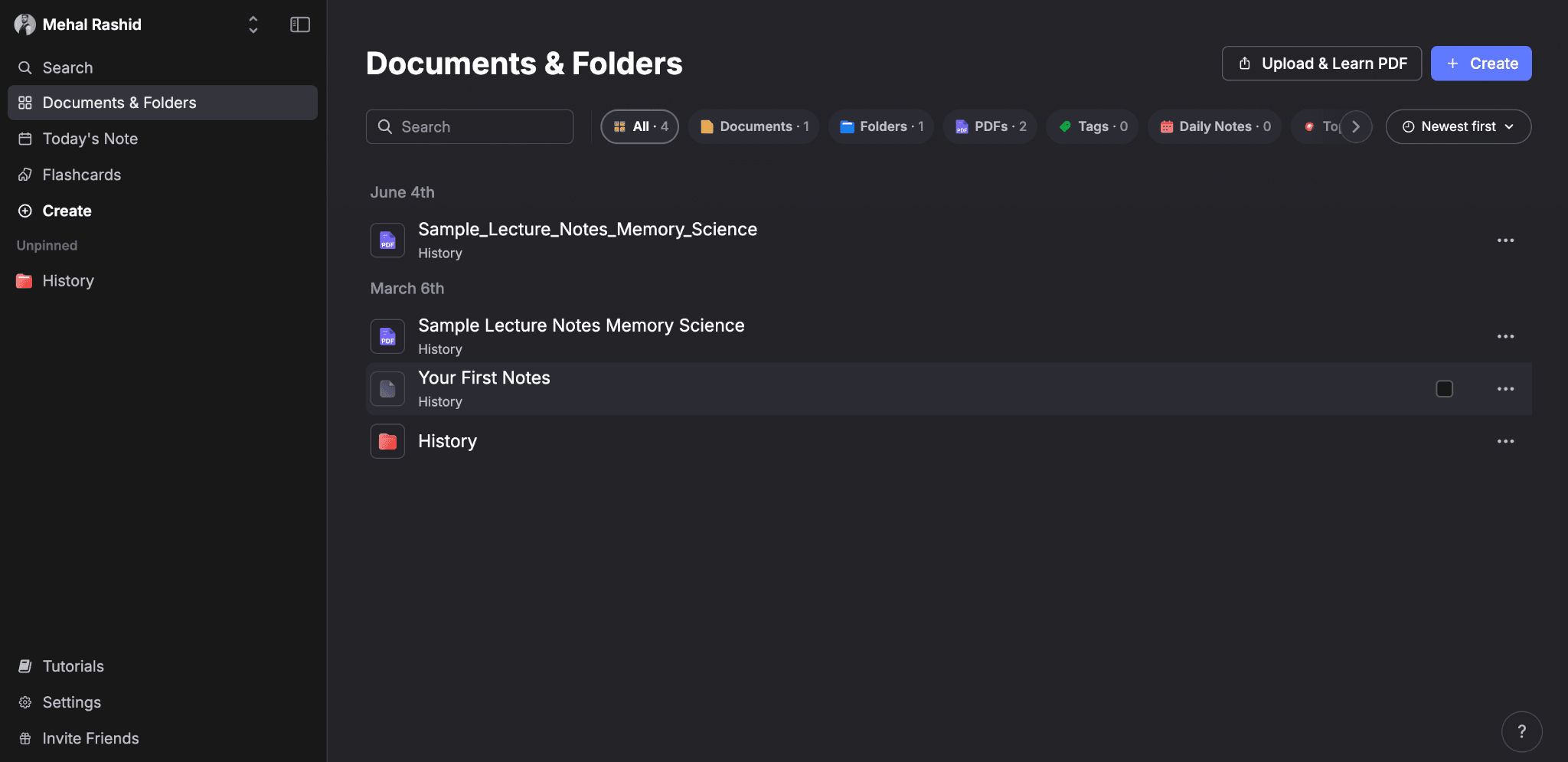
One last option that's perfect for lectures in particular is the lecture recorder.
If you attend live lectures, RemNote can record them for you and also generate a live transcription.
If you record lectures on your phone or in another app, you can upload the audio files to RemNote and have it generate a transcript.
Step 2: Generate learning materials from uploaded lecture
Once your lecture is in RemNote, open its file, and you’ll see a button that says Learn PDF, Learn Video, or something similar based on the file type, on the panel on the right-hand side. Click that button.
RemNote will ask you how well you already know the content and give you the following three options to choose from:
- Haven't learned it yet
- I have a basic understanding
- Know it well and just want to review
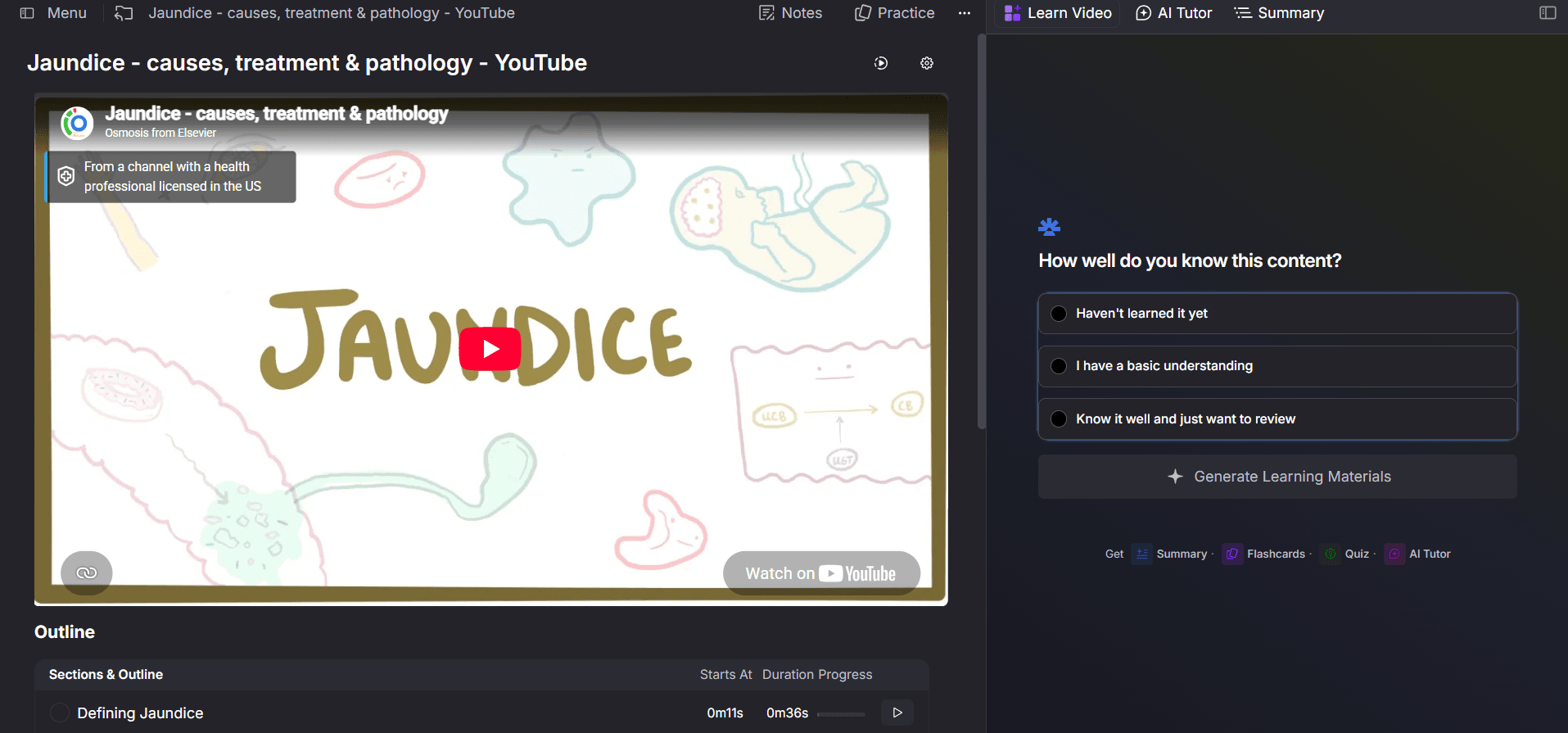
Since you want to take a practice test to see how prepared you are, you will probably want to choose "Know it well and just want to review."
It's worth noting that this choice doesn't actually affect the content that is generated. It only affects what RemNote shows you first. So if you're on your first round with the material, the summary is shown first, but if you know it well, practice is shown first instead. The generated sections and flashcards are the same in either case.
After you've selected an option, click the "Generate Learning Materials" button given right below.
Now, RemNote’s AI will generate a summary, flashcards, and a quiz for each section of your lecture. You'll see a progress bar while this happens.
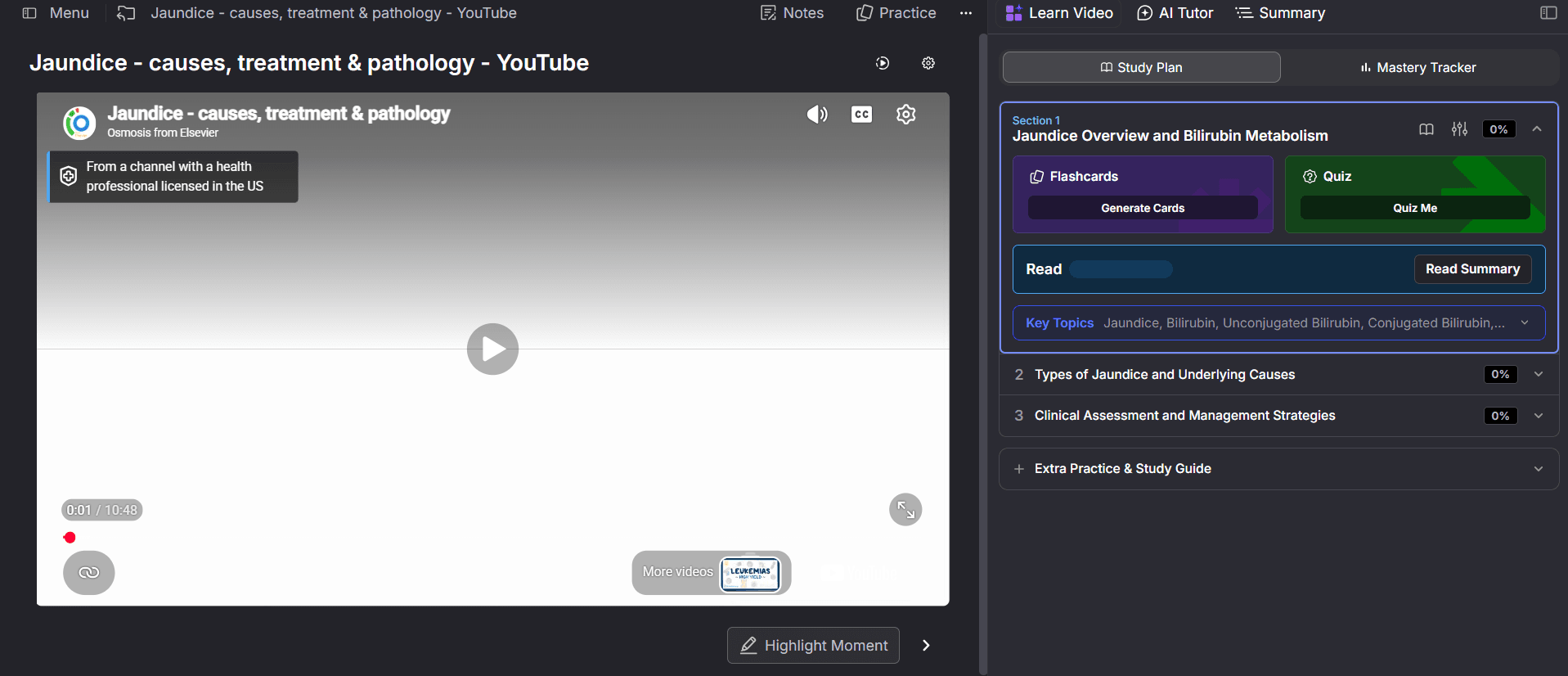
If the lecture file is large, RemNote will not generate these materials for every section at once.
It’ll generate the first few so that you can start immediately. Once you’re on to the next sections, you can click "Generate Next Sections" to get the aforementioned materials for them.
Step 3: Generate a practice quiz for the whole lecture
If you don’t want to cover a single section at a time, you can generate a practice quiz based on the whole lecture.
To do this, scroll all the way down to the bottom of your study plan and open the “Extra Practice & Study Guide” drop-down.
There you'll find two actions to perform, and the one you're looking for is Generate Practice Quiz.
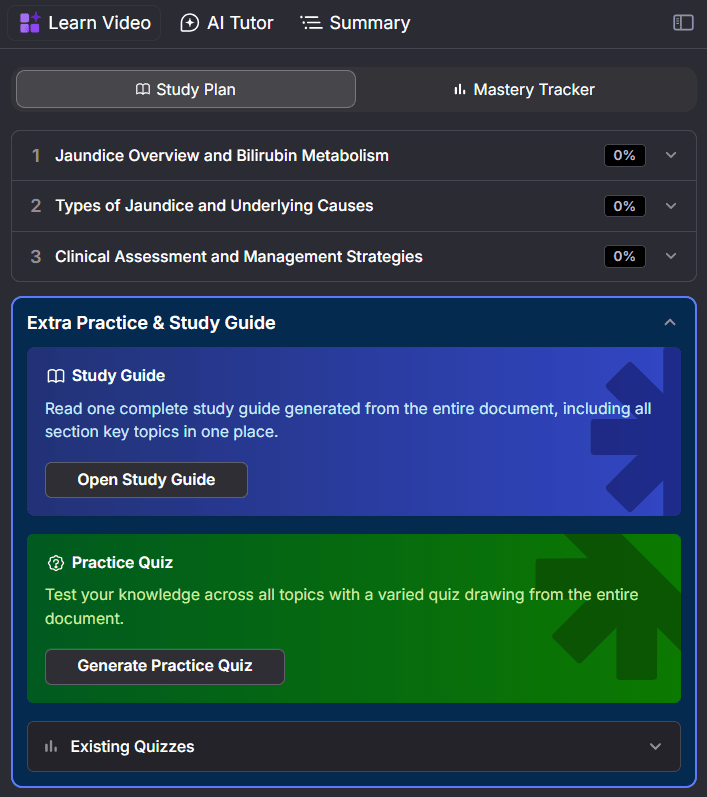
After clicking the button, a form will pop up where you can specify question types, difficulty level, number of questions, and what exact content you want to focus on. The last detail is optional.
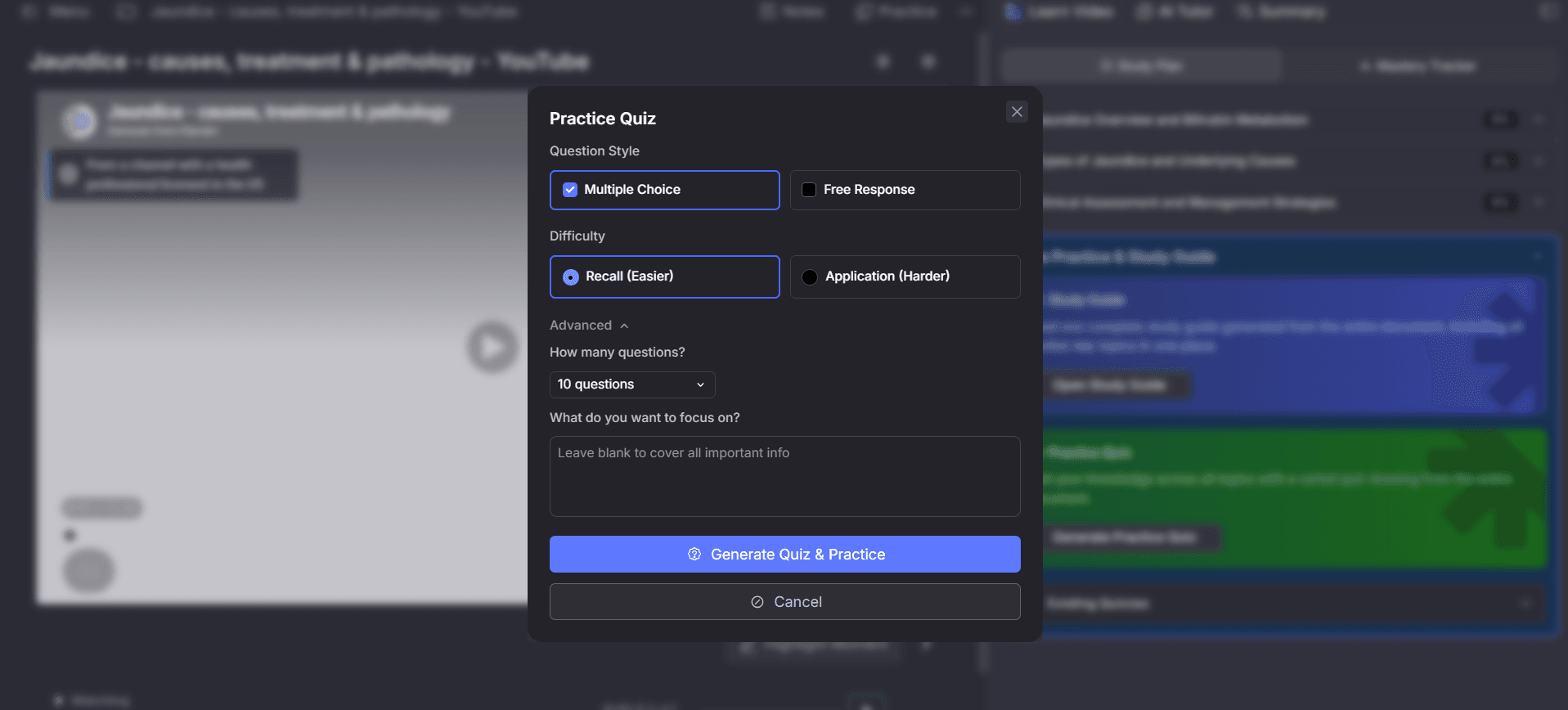
Finalize your settings and generate the quiz. RemNote will show a loading screen for a moment while it prepares your test.
Step 4: Take the test in Test Mode
Once the test is ready, RemNote will display the first question and start a timer.
You can attempt the test in one of the two modes: Study Mode or Test Mode.
For a practice test, it’s obvious you’ll go to Test Mode.
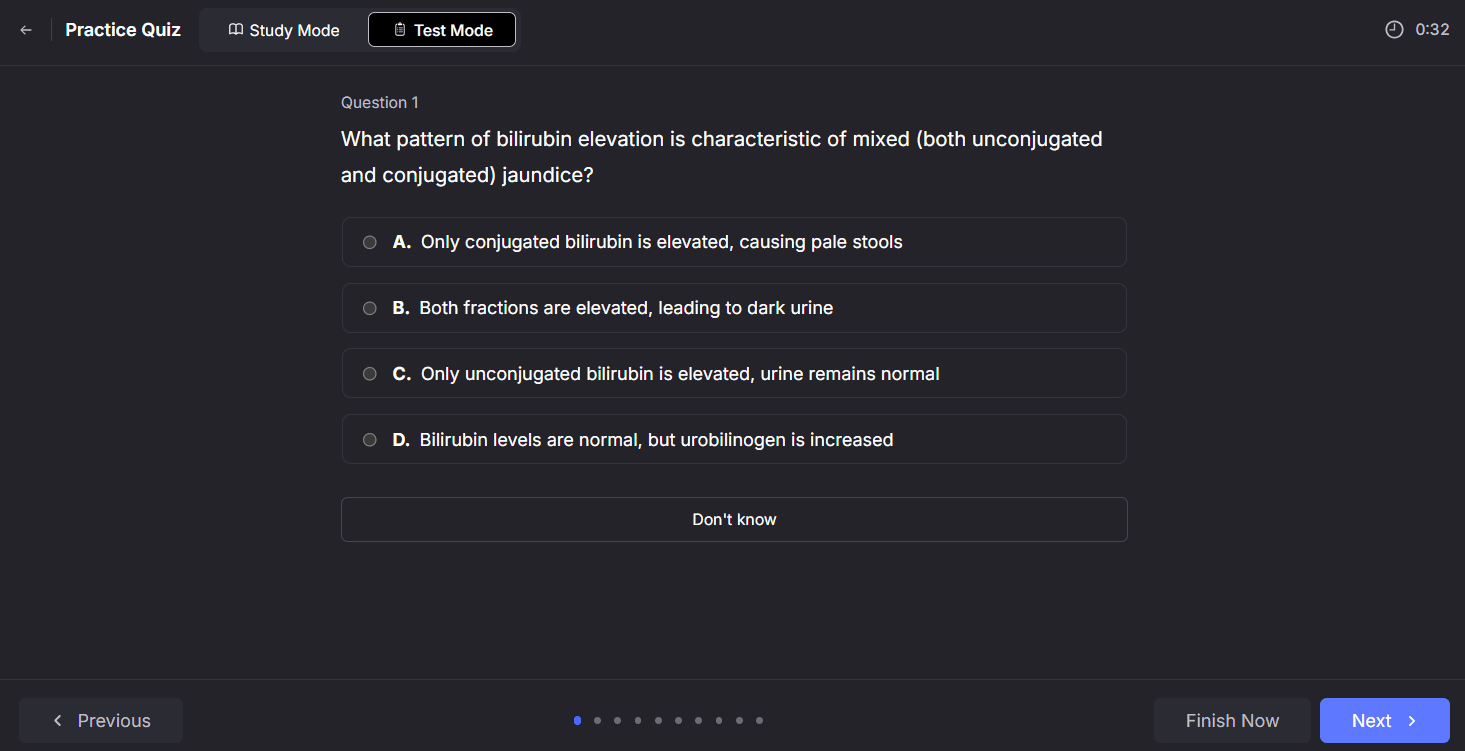
Here’s the difference between the two modes, though.
In Study Mode, each time you answer a question, RemNote will tell you whether you got it right or wrong. You’ll also have the ability to click to open an explanation for each question. In short, this mode is designed to help you keep learning as you go along.
In contrast, Test Mode is a simulation of a real exam. You aren’t told whether your answer was right or wrong after each question. Once you've answered every question, you’ll be able to see your score, the accuracy rate, and the time you took.
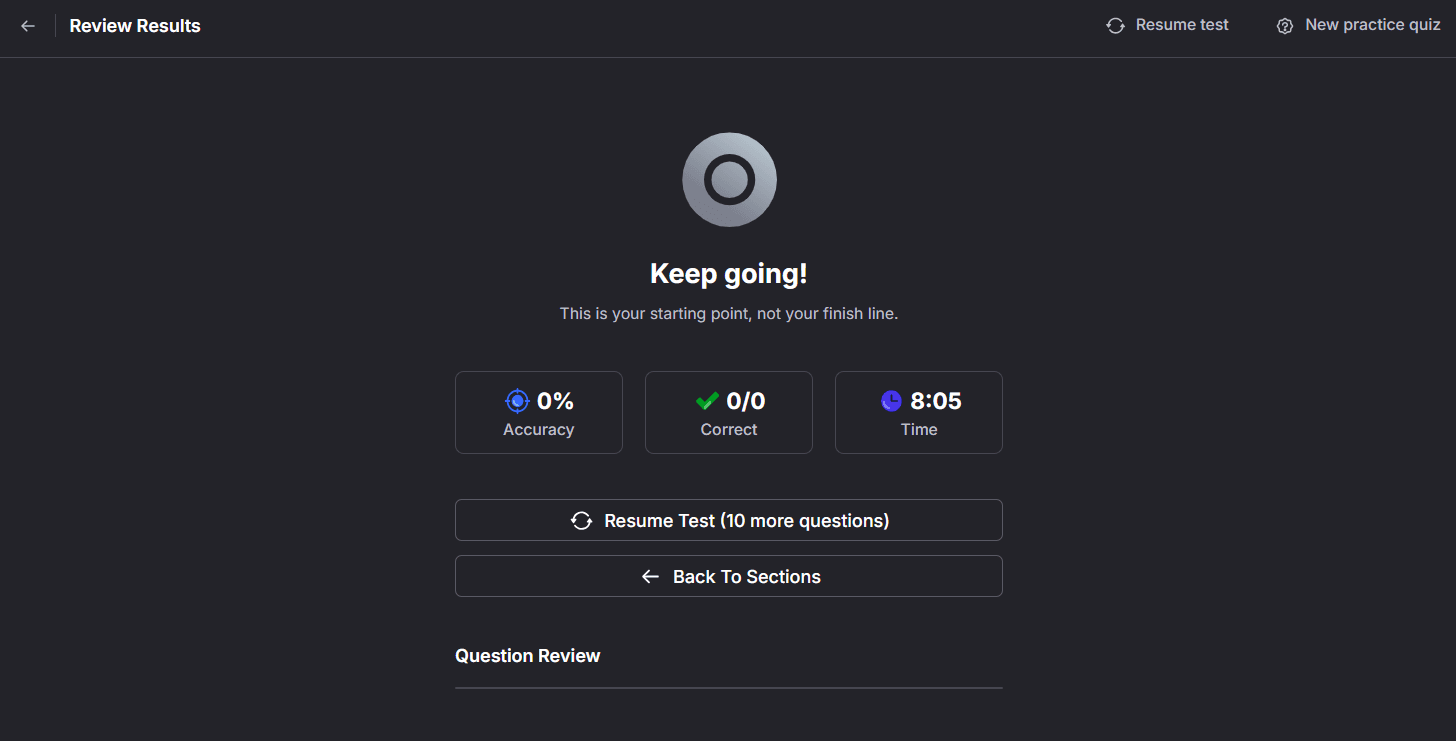
You can also review your results and target weak spots
What you see after each quiz is a basic score.
RemNote detects patterns from your performance on quizzes and maintains insights to show you and optimize subsequent quizzes.
For instance, if you keep getting questions wrong on one specific part of the lecture, RemNote will take note of that behavior and direct your attention to that topic in your next attempt.
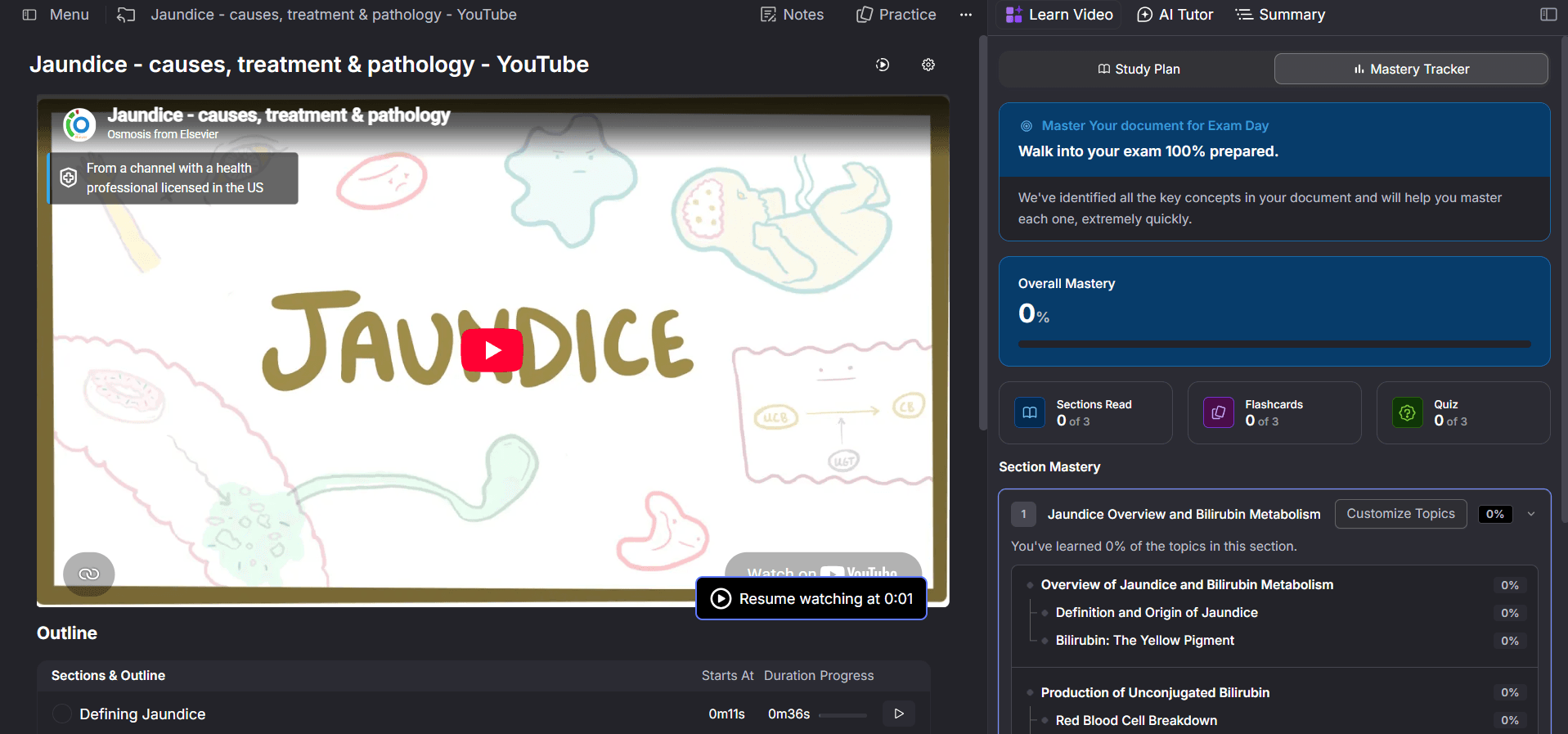
You can view these insights in the section called Mastery Tracking, located right next to the Study Plan section. This section provides an ongoing snapshot of your progress across all sections of the lecture, and all the specific topics the AI identified from the material.
You don't have to update it manually. Your overall mastery score will update automatically every time you complete a quiz or a round of flashcards.
You can create a full exam plan using RemNote
If you have an entire exam coming up, RemNote can prepare you for that as well.
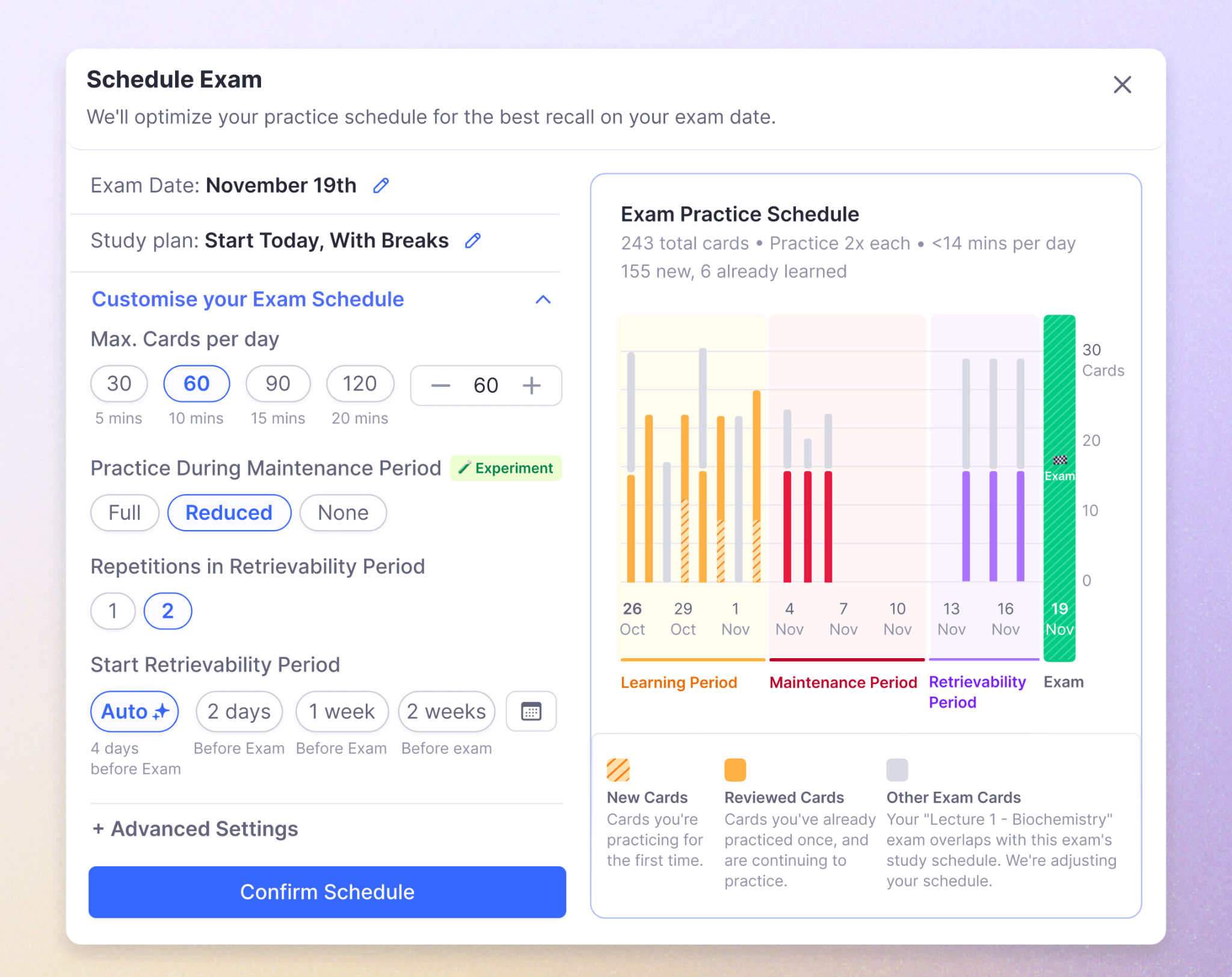
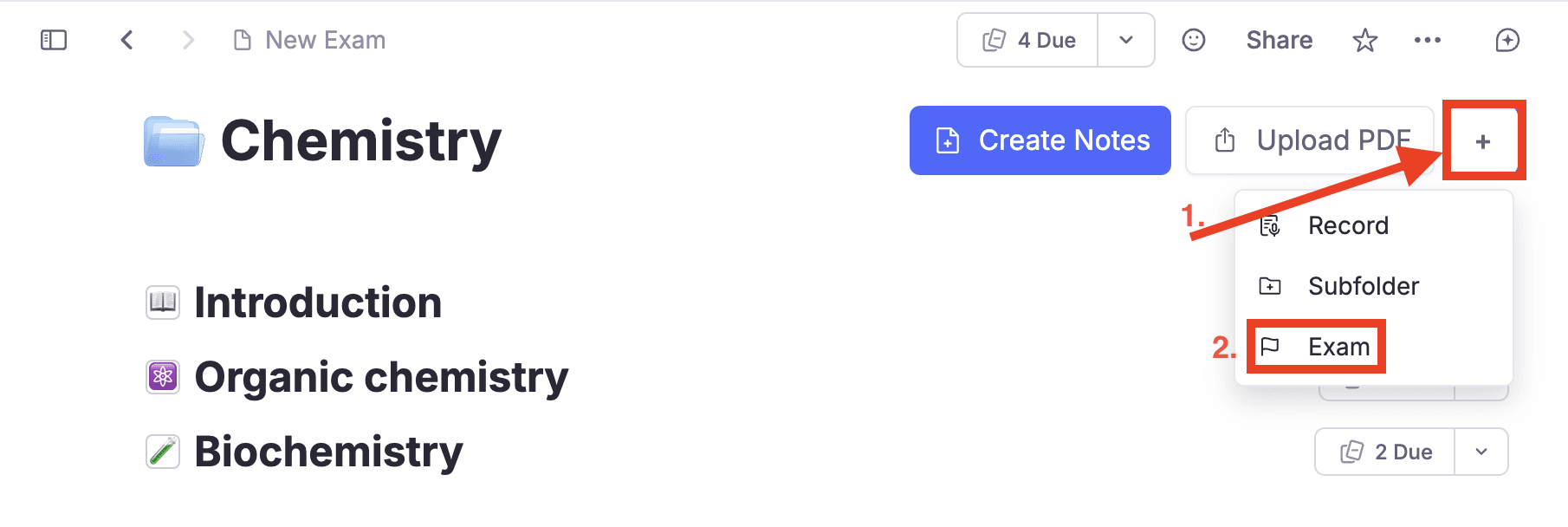
There’s a feature called Exam Scheduler, which lets you set an exam date on your lecture document or folder, and the system schedules your practice sessions around it.
You won’t have to cram everything one night before the exam. RemNote will make you cover a manageable amount of content each day to ensure everything is covered before the exam.
The following things about the Exam Scheduler are worth talking about:
- Materials pertaining to your exam are prioritized.
- Exam Scheduler adds a final review period in the last few days before your exam (for a very large exam). This helps keep everything top of mind for the exam day.
- The Exam Scheduler brings back cards you’re weak on sooner and asks you to get them right twice in a row before the system counts them as learned again.
- When life gets in the way and you fall behind, RemNote notifies you and suggests a catch-up period to get you back on track. You have the option to adjust the period to suit you.
While the Exam Scheduler is a Pro feature, it is free for your first exam.
Learn how to use the Exam Scheduler from our detailed guide.
Ace your next exam with RemNote
What you just explored was just one of the many things you can do with RemNote.
There's a lot more to the tool than turning your lecture notes into a practice test.
It is a whole study setup in a single app. It can replace your note-taking app, flashcard generator, quiz generator, spaced repetition system, and more.
And all these facets of the app are interconnected. Your notes can be turned into flashcards. You can trace back to your notes for clarification from flashcards. Quizzes are based on your notes and flashcards and so on.
In all of this, RemNote’s spaced repetition system is what actually makes RemNote one of the best tools for long-term knowledge retention.
RemNote uses the SM-2 and FSRS (Free Spaced Repetition Scheduler) algorithms to schedule flashcard reviews. These two algorithms are science-based and well-tested in helping you retain information for years.
The rest is best experienced firsthand.
And it doesn’t cost anything to get started. Sign up for RemNote for free and start studying smarter for your next exam straight away.