
How To Annotate a PDF in 4 Simple Steps + Best Tools To Do it

You can open a Word doc and start editing. You can edit a spreadsheet right inside Google Drive. But the moment you need to write on a PDF, scribble a note in the margin, or highlight a paragraph, things get complicated, don’t they?
PDFs were designed to look the same everywhere, and I get it since that's their whole point. But that also means they weren't really built to be edited.
And while most operating systems let you "view" a PDF just fine, actually annotating one with highlights, comments, or drawings requires a separate tool.
But don’t worry, because there are some solid PDF annotation tools that make the whole process simple.
In this guide, I'll show you how to annotate a PDF in four easy steps using RemNote, explain what features to look for in a good PDF annotator, and list some of the best tools available right now.
But first, let’s understand what a PDF annotator actually is, and what its features are.
What is a PDF annotator?
A PDF annotator is an annotation tool that allows you to mark up, write on, and edit a PDF document without changing the original file. You can simply imagine it as if you are writing in the margins of a textbook, except you’re just doing it digitally.
PDF annotation tools give you the freedom to highlight any text, add important comments, draw shapes for demonstration, type notes for recall, and more. And all of these markups sit on top of the original document, so rest assured that your base content will stay untouched.
Generally speaking, PDF annotators are used by students, researchers, lawyers, and pretty much anyone whose work involves dealing with documents on a regular basis.
Different features of a PDF annotator tool
Most PDF annotation tools you see online typically share a common set of features. But there are tools that also offer additional helpful features as well, which we will discuss in a while.
Here are some of the features that almost all good PDF annotators available online offer:
- Highlight: You can select text or sections of your choice and highlight them in different colors. This highlight feature is helpful for marking key definitions, formulas, or passages you want to revisit later.
- Text comments and sticky notes: Using this feature, you can add typed notes anywhere on the page. It’s great for writing down your thoughts, questions, or explanations beside specific content.
- Freehand drawing: You can also draw directly on the PDF using a pen or stylus. You can circle terms, underline phrases, sketch diagrams, or add margin notes by hand.
- Adding text: Using this feature, you get to type new text onto the PDF itself. It comes in pretty handy if your goal is to fill out worksheets or insert short notes right where you need them.
- Shapes and lines: You can insert arrows, rectangles, or lines to draw attention towards specific areas or depict connections between ideas.
As I mentioned earlier, some PDF annotation tools go further than offering the above basic markup features.
RemNote’s PDF annotator, for instance, allows you to turn your highlights and annotations into spaced repetition flashcards. Doing this, you can convert your PDF notes into your study material, which you can review over time.
How to annotate a PDF in 4 easy steps Using RemNote
PDF annotation is quite simple and just takes a couple of minutes (depending on how much you want to edit and the length of your doc) once you get the hang of it.
For demonstration purposes, I’ll be using RemNote to show you how to annotate a PDF in four simple steps.
For the sake of this tutorial, I will be using a sample document that is based on the topic “Introduction to Human Memory.” The sample doc includes text, tables, stylised boxes, and an image as well.
Step ⇒ 1: Sign up or log in to RemNote
First off, you can go ahead and log in or sign up (if you don’t have an account) on RemNote for free. You can also annotate your PDF using RemNote without creating an account.
But if you want to access your annotated PDF across devices, you need to have an account for synchronization purposes.
However, if you just want to try it out on a single device, let’s say your laptop, you can definitely get started for free without an account.

Step ⇒ 2: Upload your PDF to RemNote
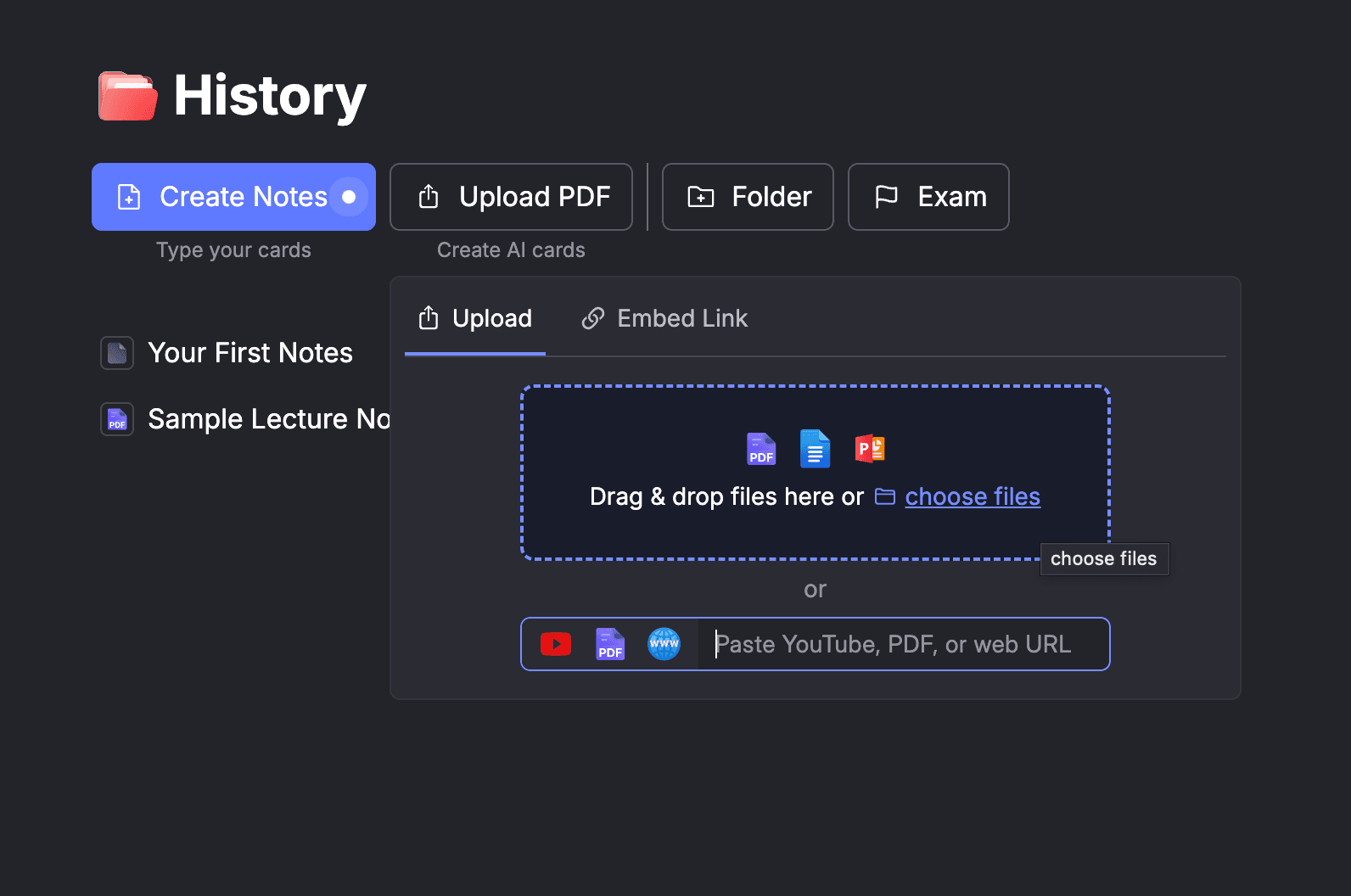
Next, go ahead and upload your PDF document to RemNote. If you are logged in with an account, simply go to your RemNote dashboard and click on Upload PDF. From there, you can:
- Drag and drop your PDF file
- Choose your PDF file from the files stored on your computer
- Paste the web link of your PDF
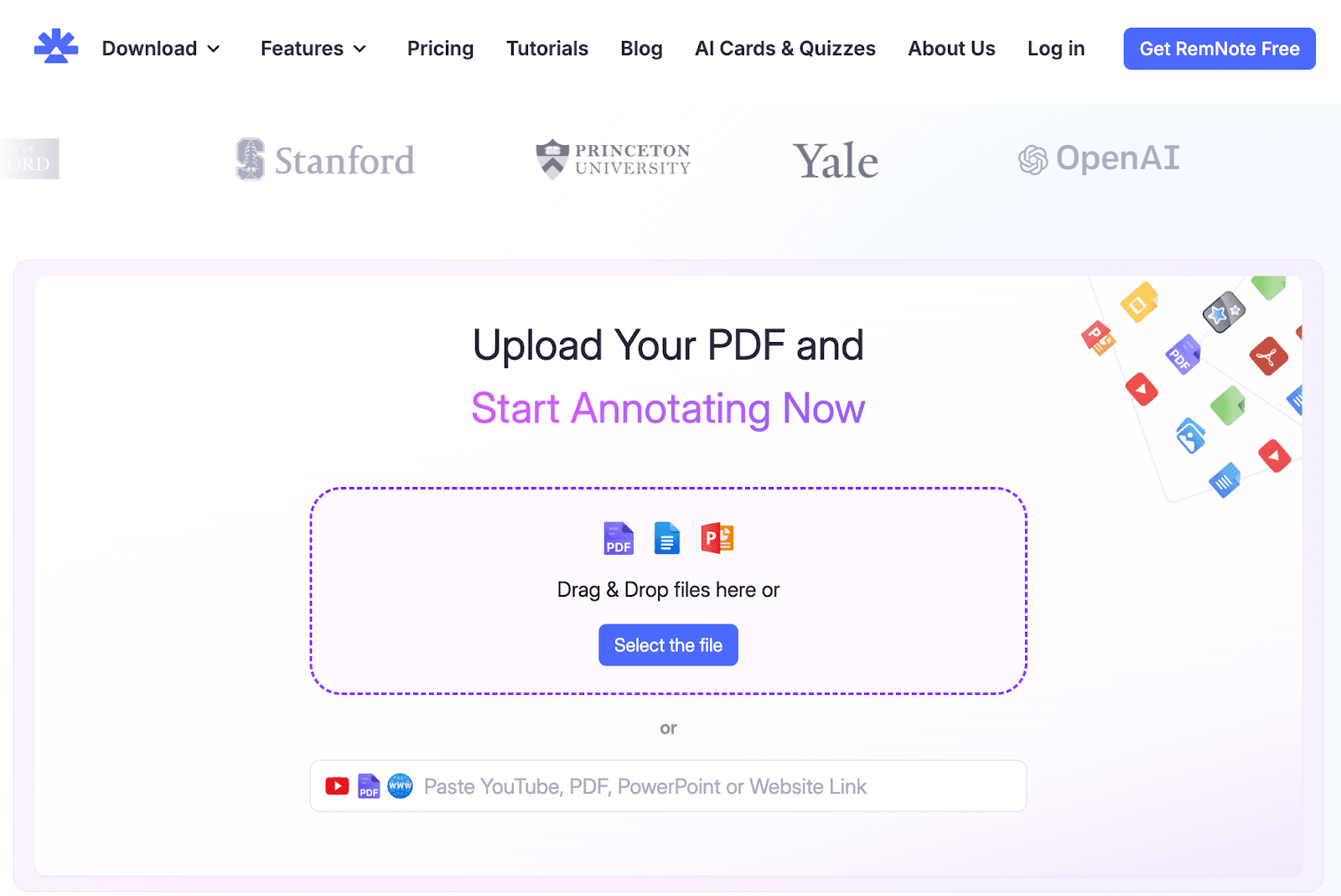
If you don’t have an account on RemNote, simply visit this RemNote annotate PDF page on its website and upload your PDF document.
Step ⇒ 3: Start annotating your PDF using different annotation features
Once your PDF is uploaded, you will see a screen like this:
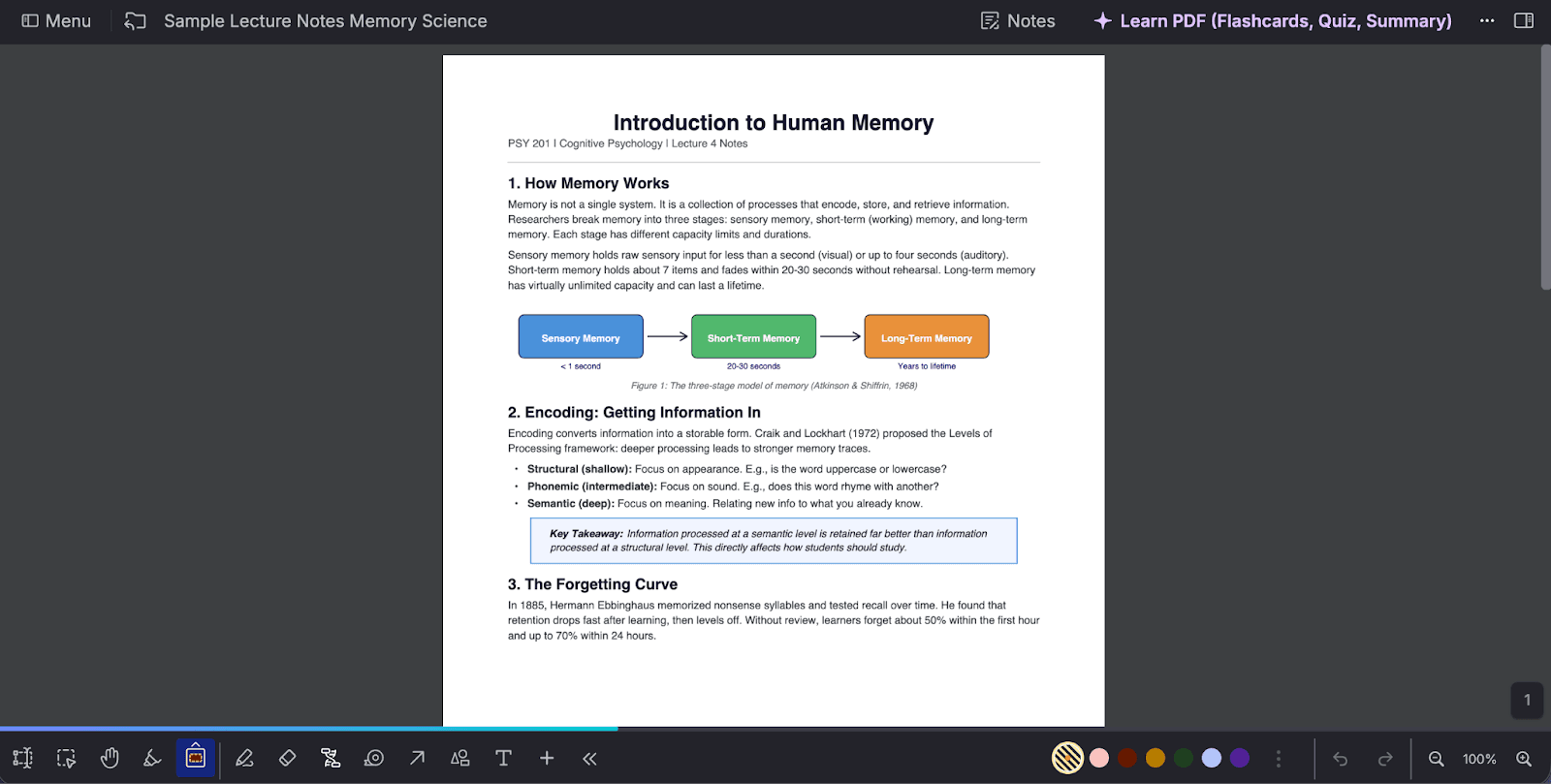
At the bottom left, you can find all the PDF annotation features. If you are unsure about what each feature does, you can hover over a feature icon to see a short description along with a video snippet to get an idea.
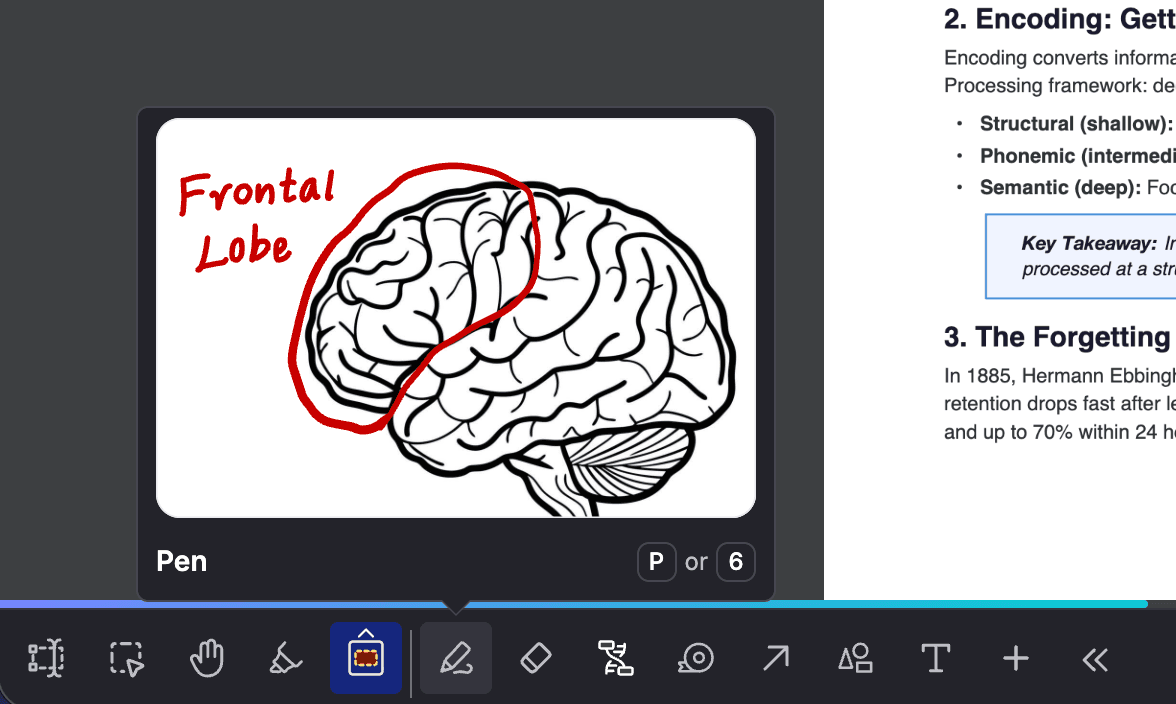
Let’s now learn how to mark up a pdf using this pdf annotation tool.
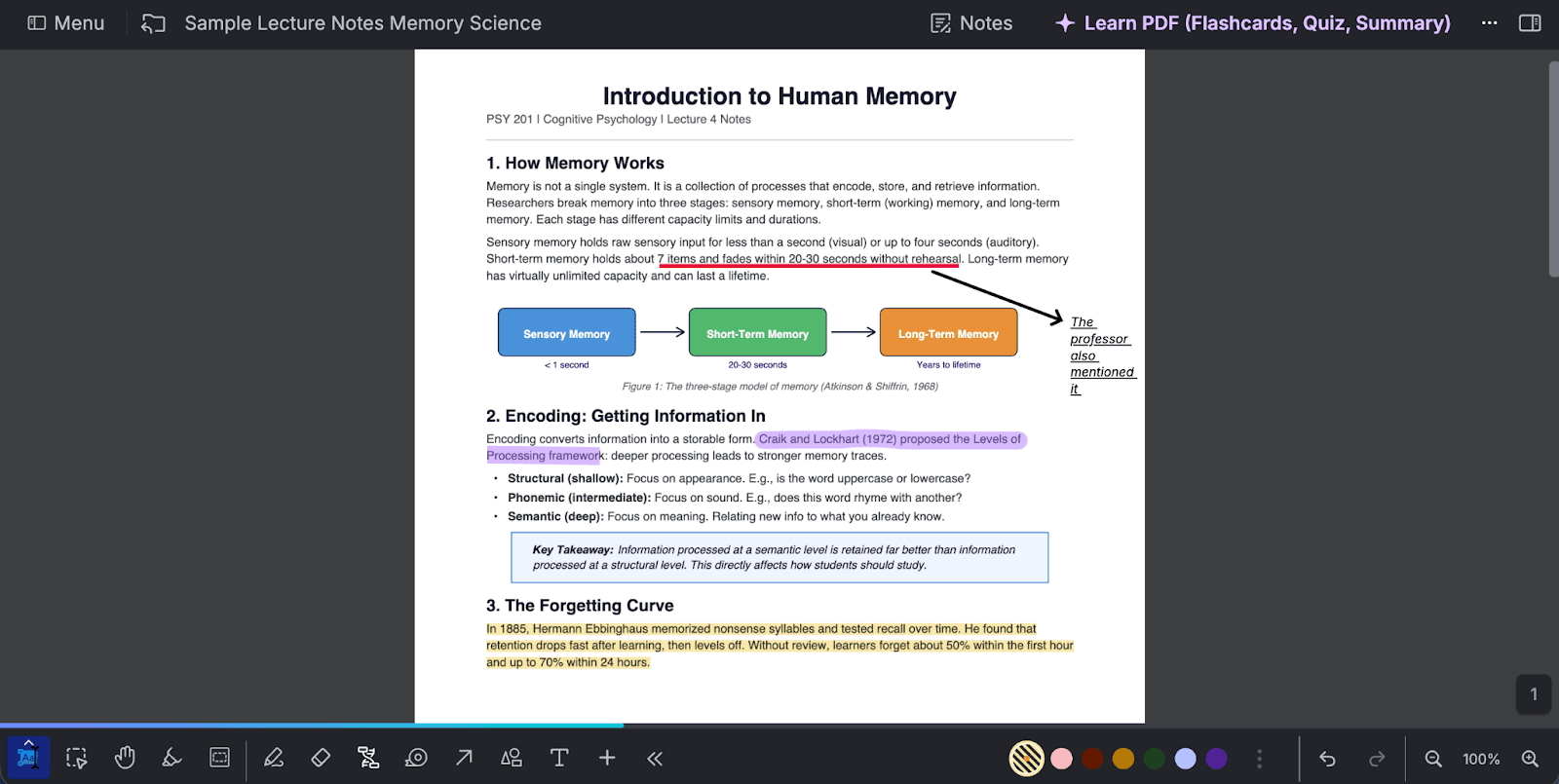
I’ll be using these features to annotate:
- Pen to show you how to draw on a PDF
- An arrow for pointing towards a direction
- A text box to show how to add text to a pdf text “The professor also mentioned it.”
- A highlight pen to highlight the text “Craik and Lockhart (1972) proposed the Levels of Processing framework.”
- PDF text highlight to highlight the paragraph about the “Forgetting Curve”
Here’s the edited version.
Step ⇒ 4: Download your PDF
Now, once you are done with the markup, it’s time to download your edited PDF document.
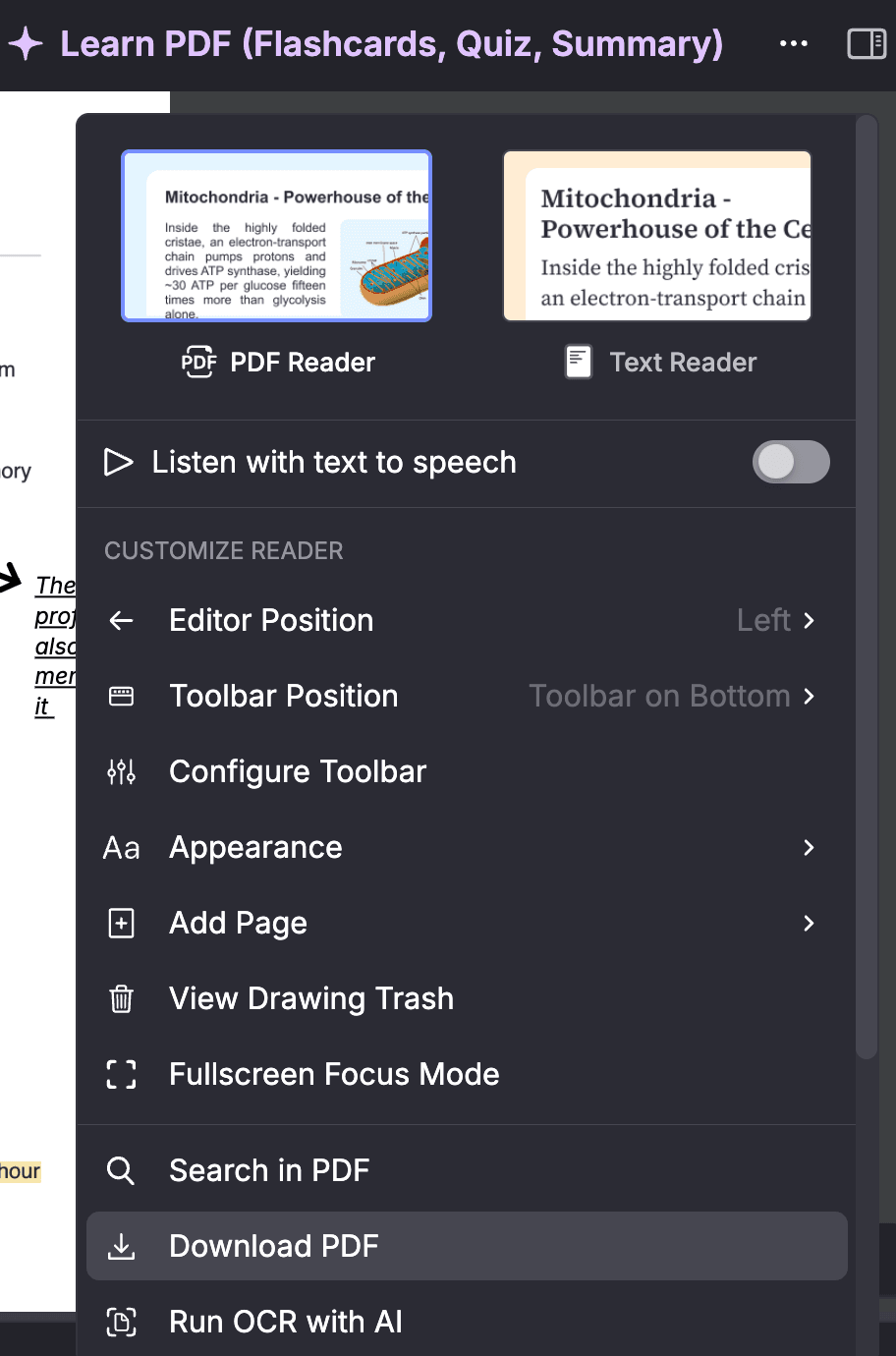
Simply go to the top right area of your RemNote screen and locate the three horizontal dots (...) button. Click on it, and it will open a drop-down menu.
From that drop-down, scroll down a bit, and you will see the option “Download PDF.” Click on it, and your annotated PDF will be downloaded.
And that’s about it! You have now successfully learned how to annotate a pdf.
Now, let’s learn about some of the best PDF annotation tools available in the market.
4 Best PDF annotation tools & apps
1. RemNote
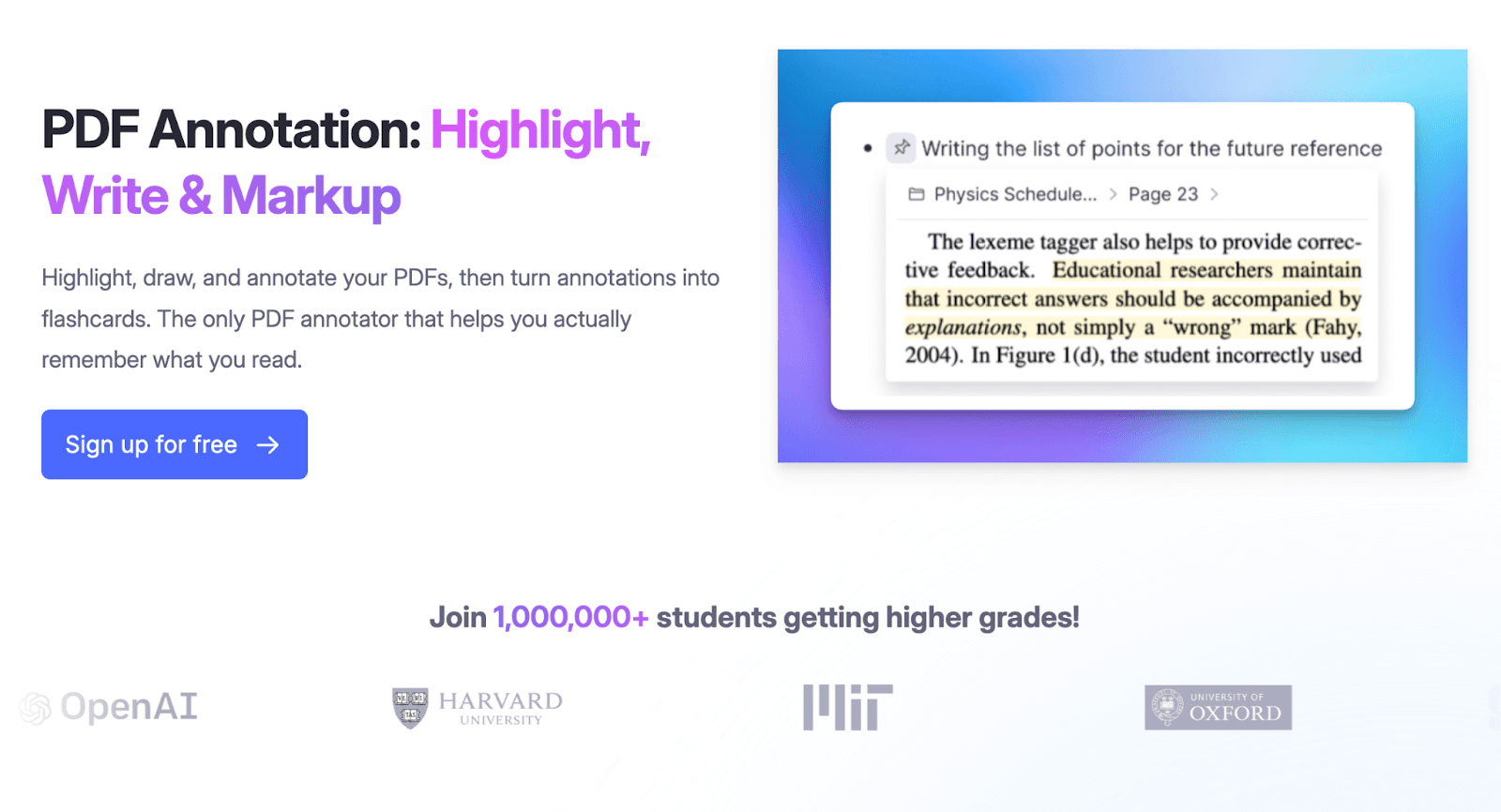
RemNote is an all-in-one note taking app/study tool that also serves as a pdf annotation app and is built specifically for students. You can easily highlight, draw, add comments, and type text directly on any uploaded document.
The thing that makes RemNote different from every other tool on this list is that it doesn’t limit you to annotations only. You can also turn any highlight into a spaced repetition flashcard with one click, generate AI quizzes from your PDF, or chat with the AI tutor about the content.
And the best thing about RemNote is that it's completely free to start.
2. PDF Annotator
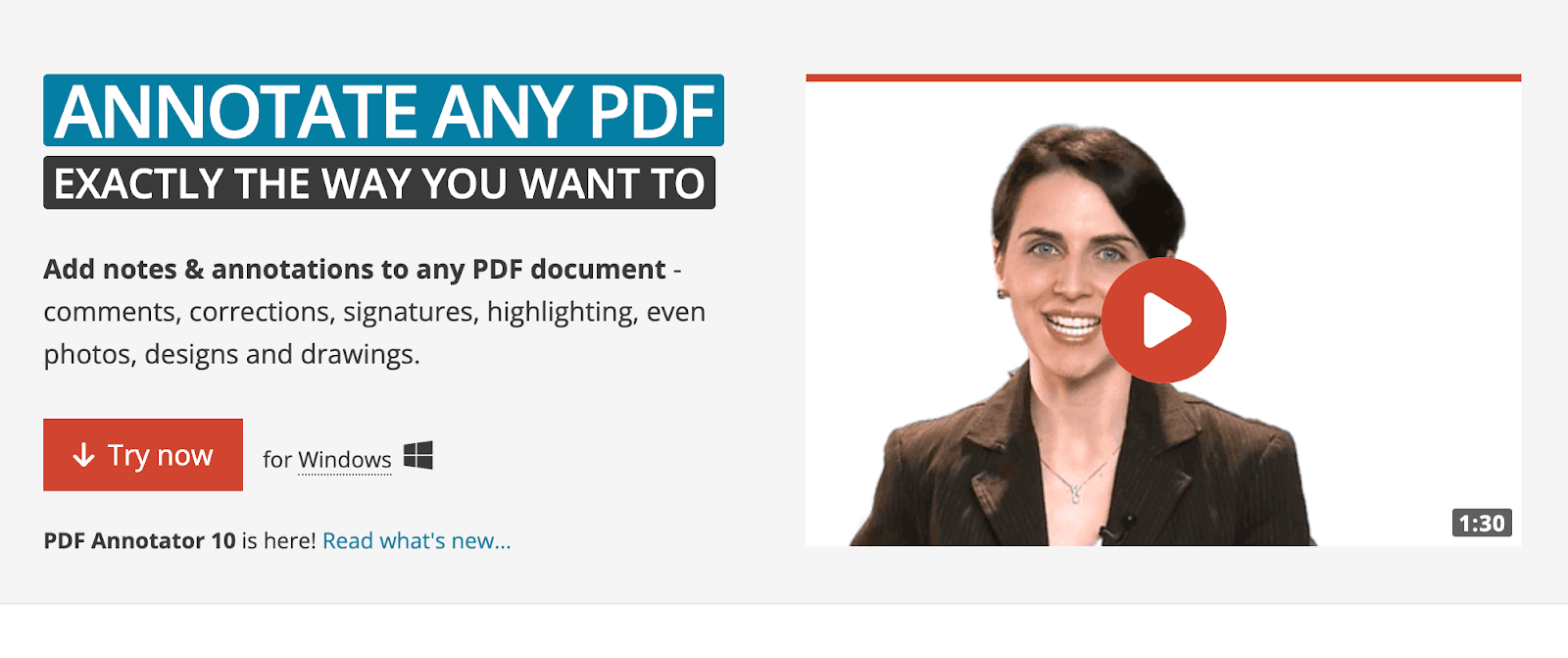
PDF annotator is a Windows desktop app (only for Windows PCs, tablets, and laptops) for marking up PDFs with typed or handwritten notes, highlights, stamps, and drawings.
You can also use it as a digital whiteboard for presentations. But the catch is that PDF Annotator is a paid tool that requires a license, though they offer a 30-day free trial.
3. Smallpdf
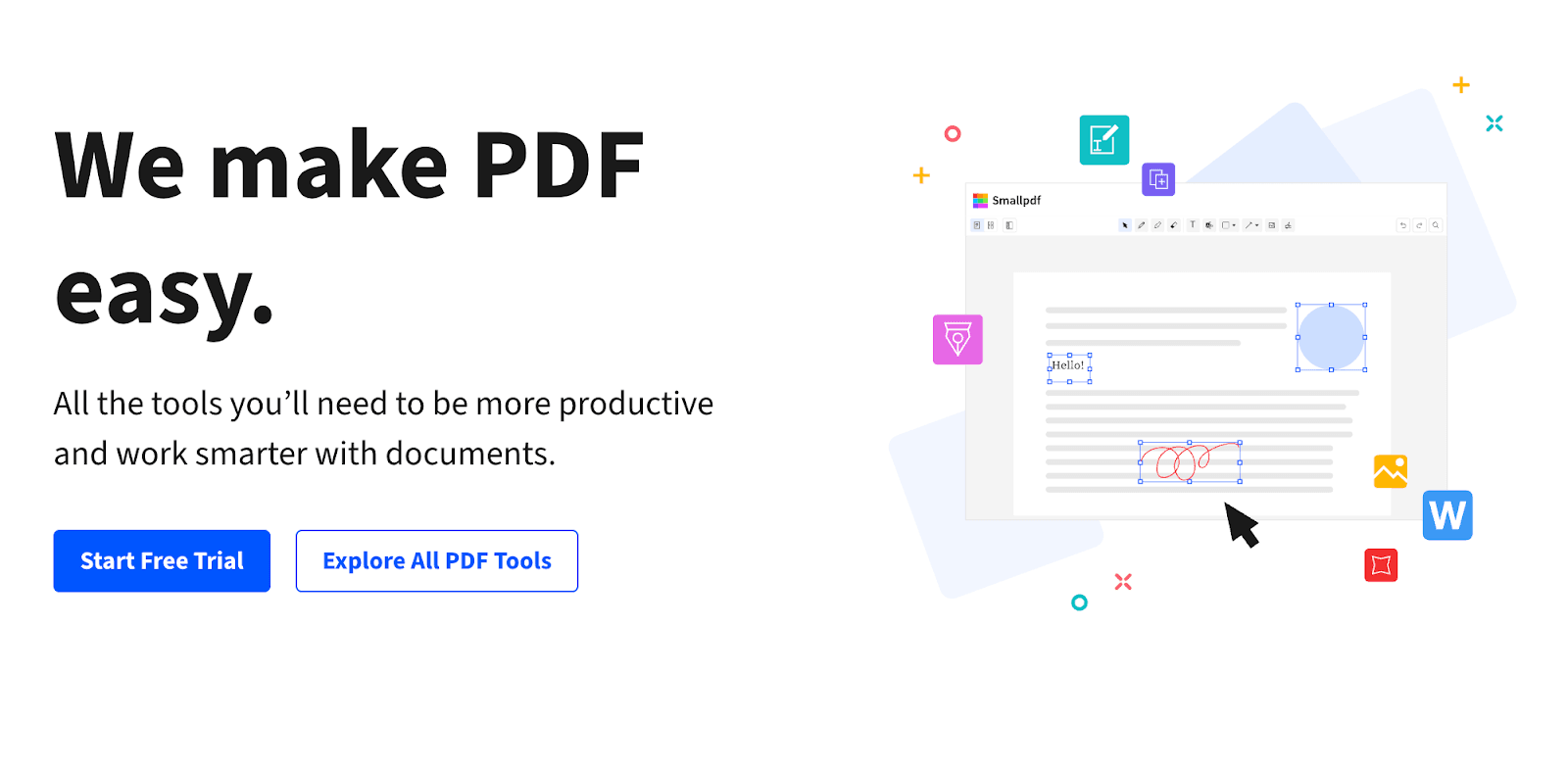
Smallpdf is a free browser-based PDF annotation tool that allows you to highlight, add text to a PDF, and draw shapes without downloading anything (though it has a mobile app as well).
It’s good for quick markups when you don't need a complete annotation solution.
4. Adobe Acrobat
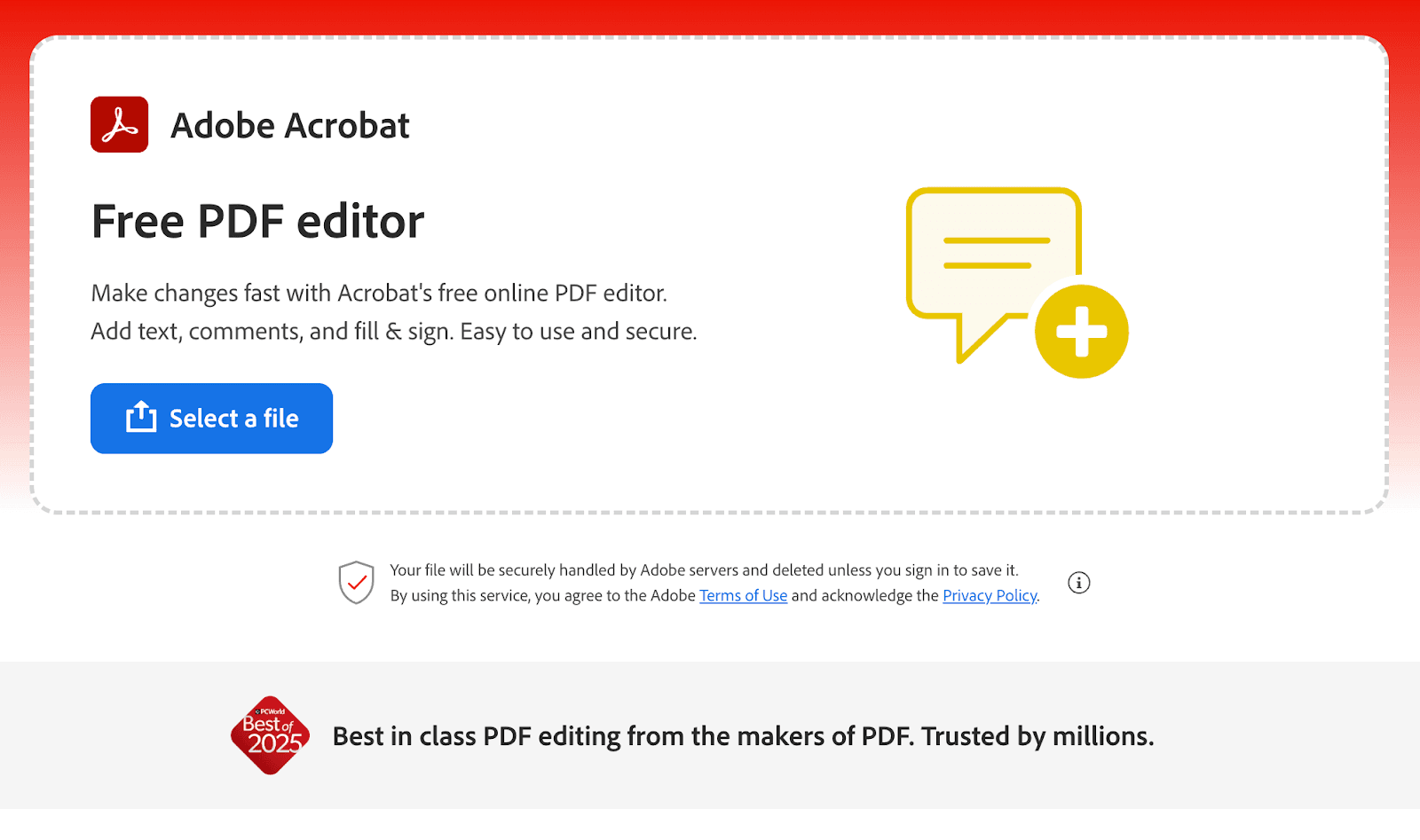
You must have heard about Adobe Acrobat. Well, they offer PDF annotation as well.
Adobe's online PDF editor lets you add sticky notes, highlight text, and write on a PDF with freehand drawings. However, its free version only allows you to do basic annotation. If you want to do advanced editing, it requires an Acrobat Pro subscription.
Advanced PDF annotation that actually helps you learn
Now that you know how to annotate a PDF, here's something worth thinking about.
Most people out there annotate their PDFs, close their file, and never look at those notes again. The annotations are abandoned, completely!
While it is true that the actual goal, which was of annotation, is achieved, it’s also a missed opportunity if you think about it, especially if you're a student.
Don’t you think that a better approach would be to use a tool where your annotations feed directly into your study workflow? I know you nodded there!
Well, RemNote does exactly that. Your highlights become flashcards, your PDFs become study sessions, and nothing you mark up goes to waste.
You can get started with RemNote for free today.